The essential rule: record spending once.
Choose a spending envelope when you buy something. Later, record the payment from your bank account to the card without charging that envelope again.
Nifty is manual: it doesn't connect to your bank or send payments to your card issuer. You record what happened; Nifty keeps the budget and account balances in step.
Credit cards are available with normal budget editing access, including shared-budget editors. You don't need beta mode.
All examples are fictional, in USD. Web screenshots show the running app; iPhone screenshots are rendered from the app's native views using the same sample budget. Labels and layout may vary by version.
1. Add the card and its starting debt.
Pick a starting point. In this example, you have $1,000 in Checking and already owe $200 on Everyday card.
On the web
- Choose Add account.
- Select Credit card and give it a recognizable name.
- Enter 200.00 as the starting amount owed, then save.
On iPhone
- Open Accounts and tap +.
- Set Type to Credit card.
- Enter the name and 200.00 under Starting amount owed (USD), then save.
Enter the amount owed as a positive number in this form. The account's working balance becomes −$200: a liability, not spendable cash.
The starting debt does not reduce Left to Budget automatically. You still need to set aside money for it. Enter new purchases after your chosen starting point; re-entering purchases already included in the opening balance would count them twice.
2. Record a purchase against its spending envelope.
First assign $100 to Groceries. Then record a $40 grocery purchase on Everyday card.
On the web
- Choose Add transaction and Expense.
- Select Everyday card as the account.
- Enter the payee, date, Groceries envelope, and 40.00.
- Check the preview, then save.
On iPhone
- Open Accounts → Everyday card → Add transaction.
- Choose Expense, enter the payee and date, and select Groceries.
- Enter 40.00, tap Review, check the result, then Save.
Groceries now has $60 available. You owe $240 on the card. Nifty reserves the funded $40 for payment, and Checking stays at $1,000.
Buying from several envelopes? Use the split-expense option and make the parts add up to the purchase total. Choose the envelopes for what you bought, not an envelope named “credit-card bill.”
3. Set aside payment money for older debt.
The $40 grocery purchase already has payment money reserved automatically. The original $200 balance does not. Set aside $100 toward that older debt:
On the web
- Find the card's payment envelopes in My envelopes.
- Click the amount in the Debt payoff row.
- Set the total unused debt-payoff reserve to 100.00.
- Review the change and choose Save debt-payoff amount.
On iPhone
- Open Accounts → Everyday card → Manage card funding & payments.
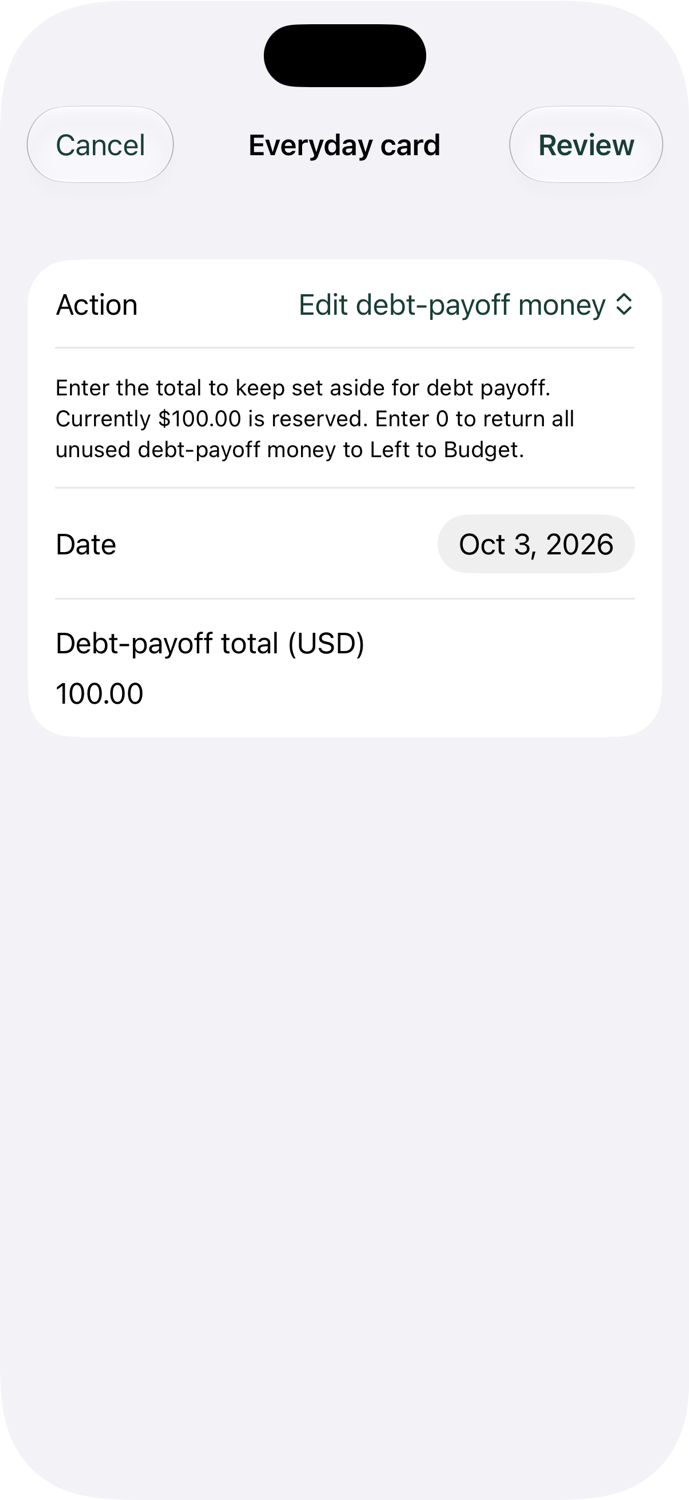
- Choose Edit debt-payoff money.
- Enter 100.00, check the date, then tap Review → Save debt-payoff amount.
This is a total, not an additional amount. If $100 is already reserved and you want $150 reserved, enter $150. Both apps adjust only the difference.
Setting a lower total returns unused debt-payoff cash to Left to Budget. Setting it to zero doesn't erase debt or reverse an actual payment.
Check the resulting payment money
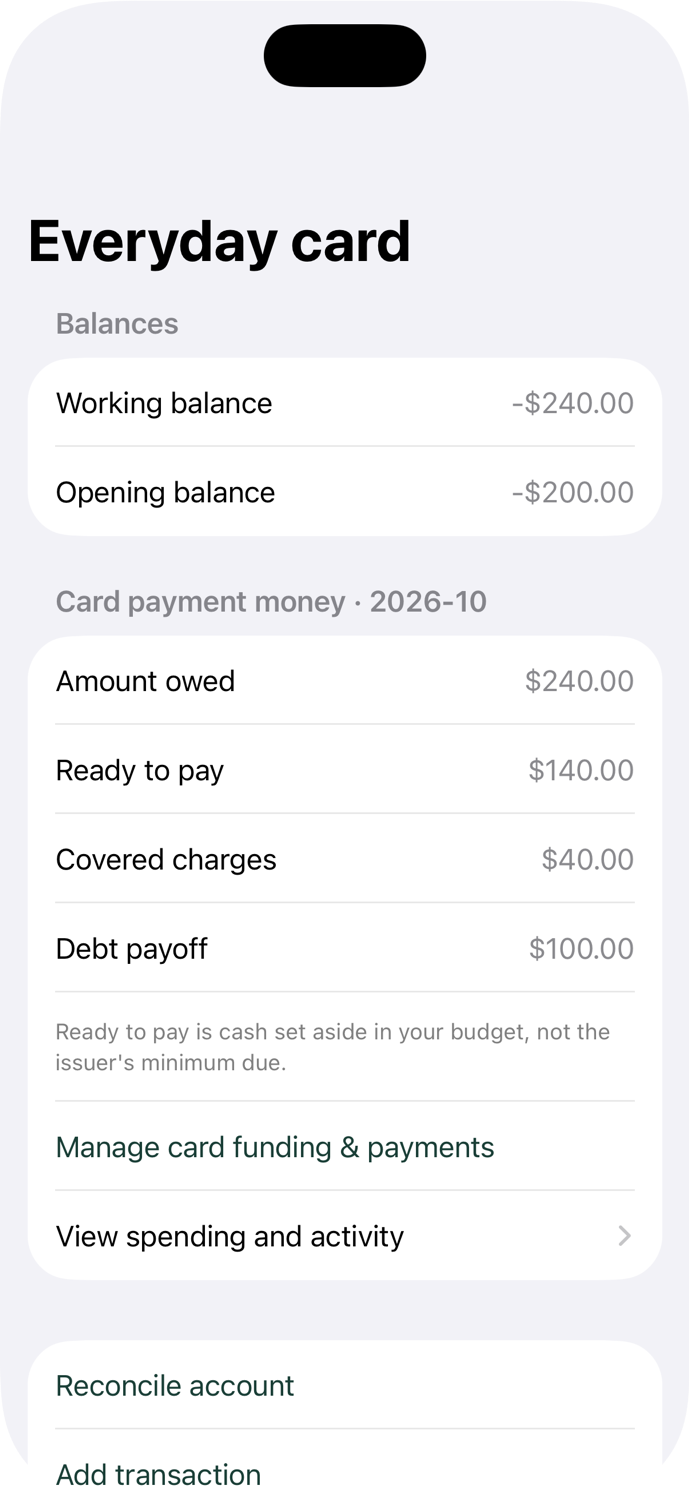
You now have $140 ready to pay: $40 from the funded purchase plus the $100 you just reserved. Here's how that looks in each app:
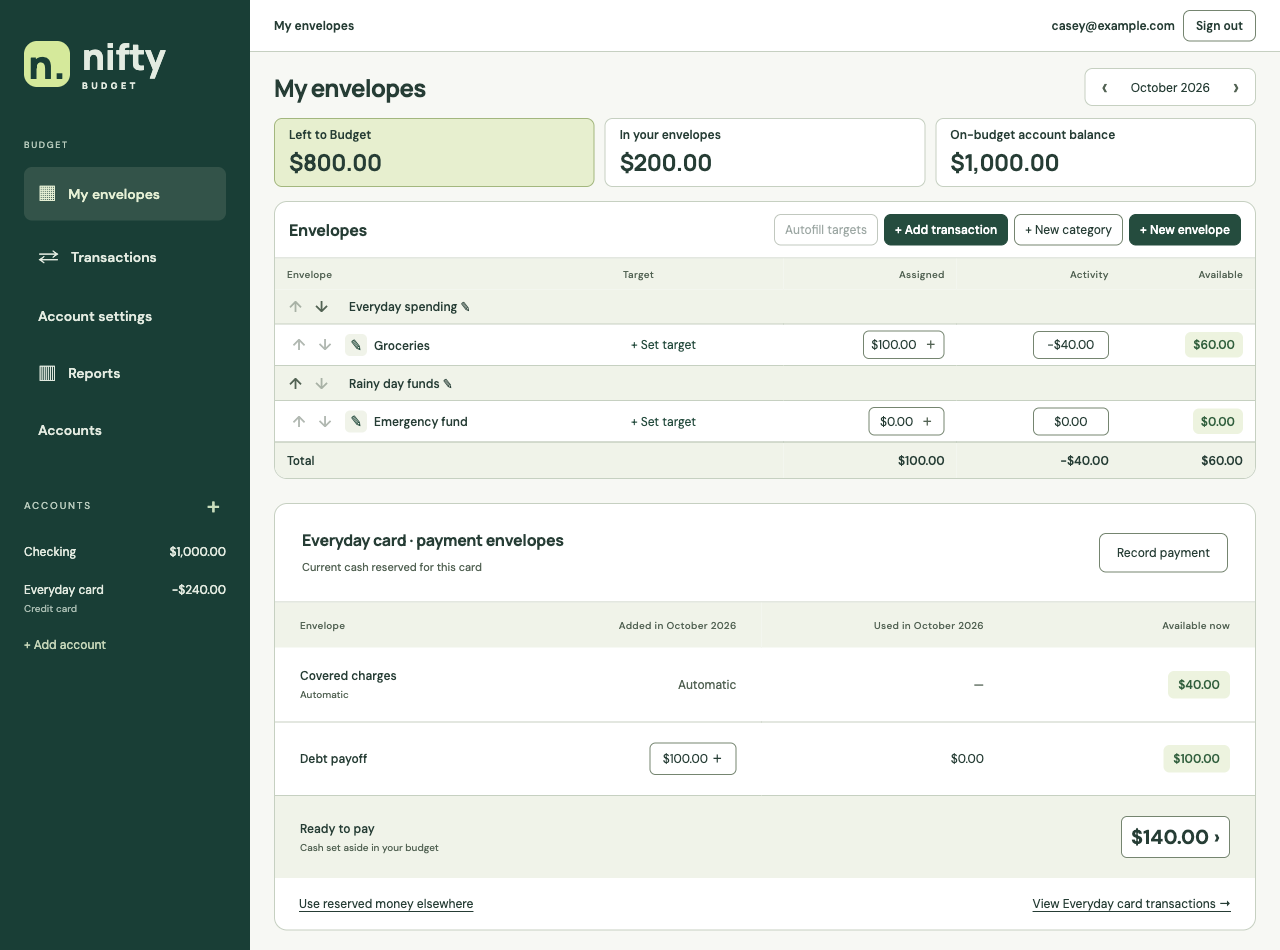
What each number means
- Amount owed: $240
- The total liability recorded in Nifty. It may differ from your statement balance because of new purchases or missing entries.
- Covered charges: $40
- Money reserved from funded card purchases.
- Debt payoff: $100
- Extra money you deliberately set aside for existing or otherwise unfunded debt.
- Ready to pay: $140
- The cash reserved for this card: $40 + $100. It is not your issuer's minimum payment or statement amount.
Money reserved for the card is still in your bank account, but isn't available for another envelope. Left to Budget is $800: $1,000 minus the original $100 grocery assignment and $100 debt-payoff reserve.
4. Record the payment as a transfer.
Example A: starting from $240 owed and $140 ready, you pay $140 from Checking through your bank or card issuer. Now record that real payment in Nifty.
On the web
- Choose Record payment in the card's payment section.
- Choose Checking under Pay from.
- Enter the actual date and 140.00.
- Review the preview and choose Record payment.
On iPhone
- Open Manage card funding & payments.
- Set Action to Record payment.
- Enter the date and 140.00, and choose Checking.
- Tap Review → Record payment.
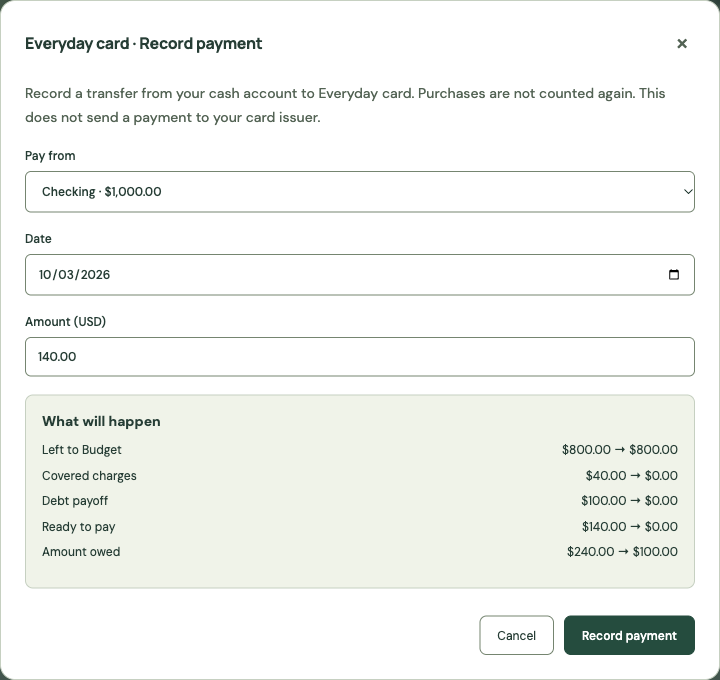
Checking falls to $860, the card debt falls to $100, and Ready to pay falls to $0. Groceries stays at $60 available. There is no second grocery expense and no income entry.
Nifty creates linked entries in both accounts. Record the payment once—don't manually add the other side. If you pay from a different bank account, choose the account the money actually left.
A payment must fit the card's reserved cash, the amount owed, and the source account balance. If your real payment is larger than Ready to pay, first reserve the missing money from available budget cash. Check your issuer's statement for the amount and deadline you actually need to pay.
Handle a purchase bigger than its envelope.
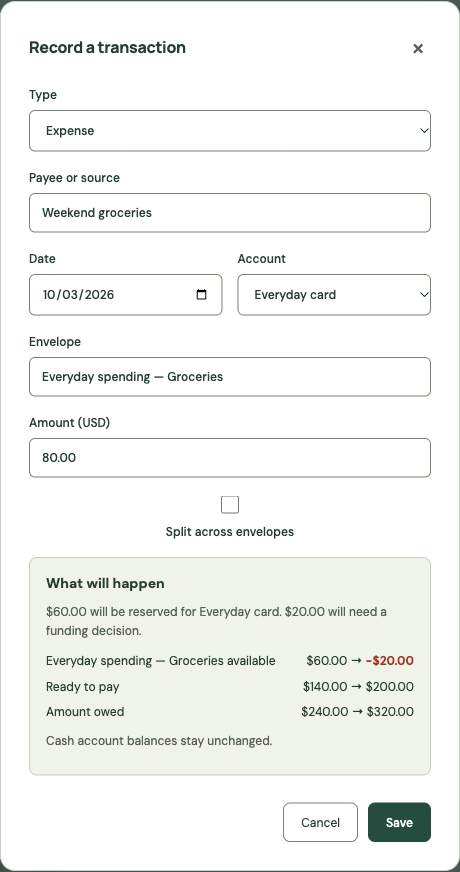
Example B is an alternative to paying above. Start again with $240 owed, $140 ready, and $60 in Groceries. Before making any payment, record another $80 grocery purchase on Everyday card.
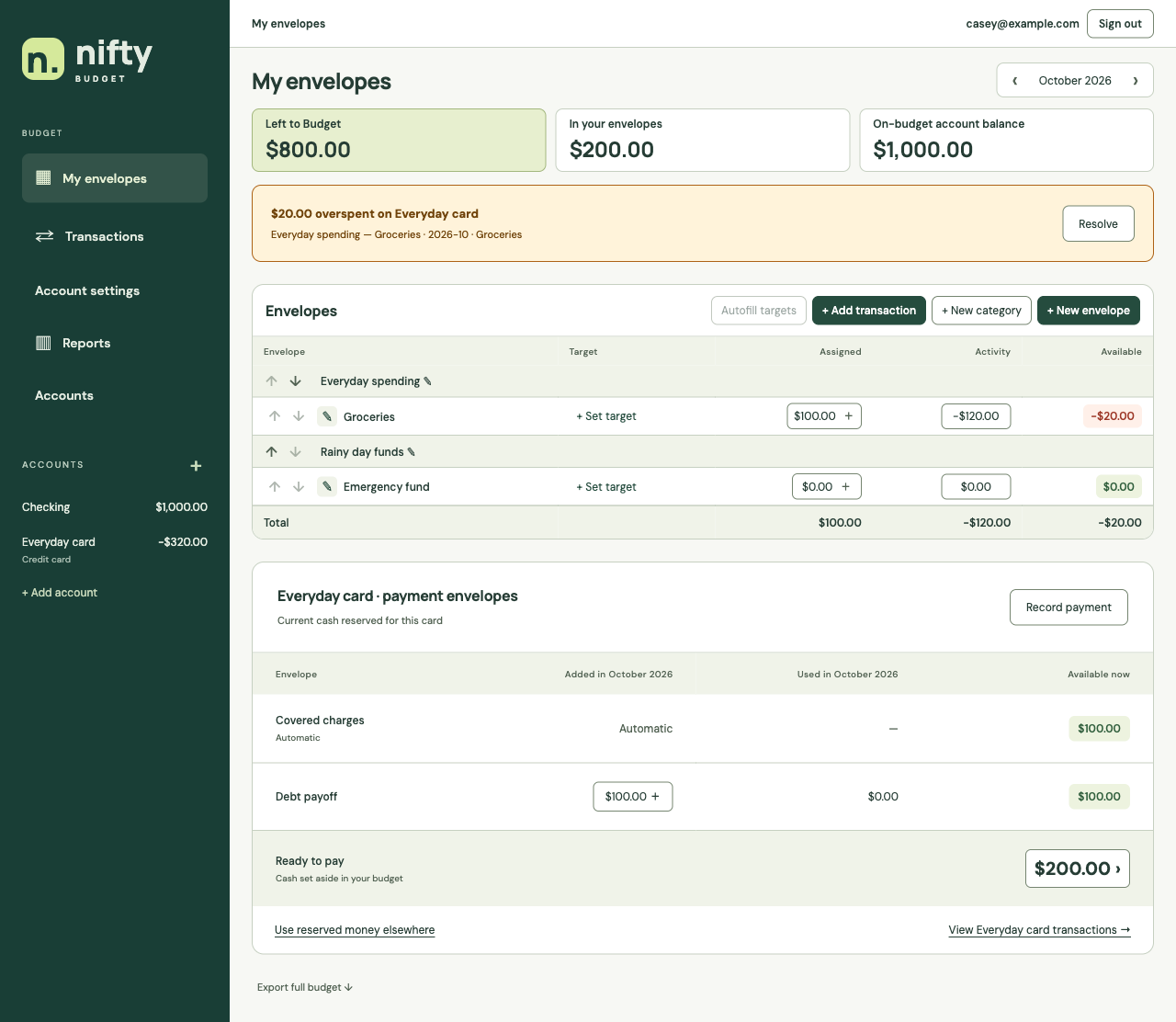
The preview reserves the remaining $60 and identifies $20 needing a funding decision. After saving:
- Groceries: −$20 available
- Card amount owed: $320
- Ready to pay: $200 ($100 covered purchases + $100 debt payoff)
- Checking: still $1,000
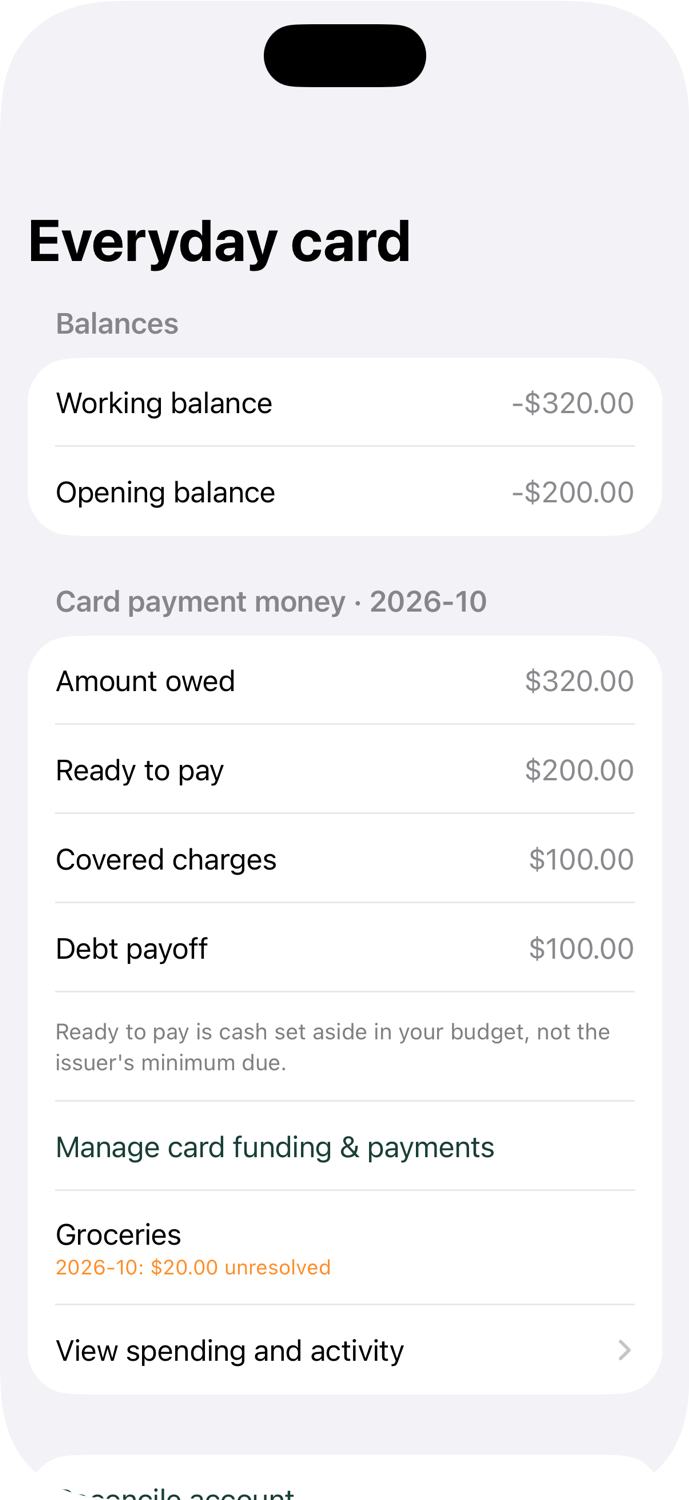
A negative envelope is a decision to make. The card's credit limit is not money available to budget.
Option 1: cover it with cash
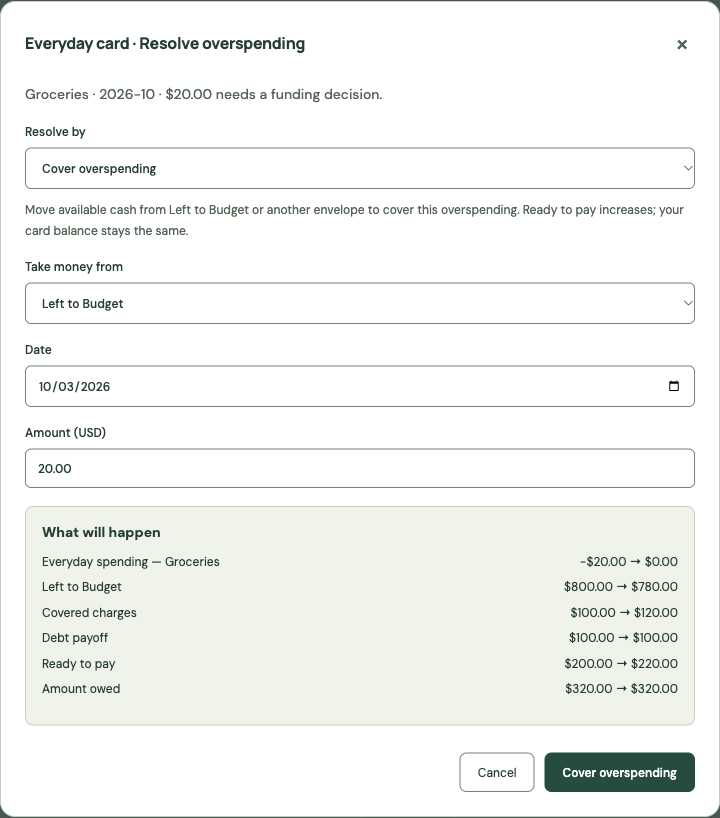
Web: choose Resolve → Cover overspending. Select Left to Budget or an envelope with available money, enter 20.00, and review the change.
iPhone: open Manage card funding & payments → Cover overspending. Select the unresolved Groceries entry, choose the source, enter 20.00, then Review → Cover overspending.
Using Left to Budget brings Groceries to $0, Ready to pay to $220, and Left to Budget to $780. The card still owes $320: setting aside money isn't a payment.
Option 2: deliberately carry it as debt
If you can't cover it now, choose Carry as debt in either app. On web, find it under Resolve; on iPhone, find it under Manage card funding & payments and select the unresolved spending. Review the result before confirming Carry as debt.
This resolves the envelope shortfall as financed spending. It creates no cash and reserves no additional payment money. The $320 debt and $200 Ready to pay stay the same. Fund that debt later through Debt payoff.
Resolve card overspending using these actions rather than increasing the envelope assignment. Unresolved spending from earlier months remains visible until you deal with it.
Record interest and card fees.
Add a transaction on the card and choose Interest / fee in either app. Enter the actual charge, date, and payee. This is an uncategorized card charge: it increases debt without creating payment cash.
For example, $10 interest changes $320 owed to $330 owed. Ready to pay stays unchanged unless existing issuer credit absorbs the charge. Use Debt payoff to reserve money when you can cover the added debt.
Keep rewards and purchase refunds distinct.
Cashback applied to the card
Use Statement credit / bonus in either app. Enter a positive amount on the card account. This is not income into Checking.
A statement credit reduces card debt and can resolve unfunded card spending. If reserved cash exceeds what is still owed, the excess reserve returns to Left to Budget. A credit beyond the card balance stays as issuer credit and can cover later charges; it doesn't invent cash in your bank.
A merchant returns money for a purchase
Purchase refunds to credit cards are not supported yet. The “Refund to envelope” flow is for cash accounts. Don't use a reward/statement-credit entry as a substitute: it doesn't restore the original spending envelope like a purchase refund would.
If your situation involves a card purchase refund, contact support. Don't delete a real purchase just to hide its later refund.
Check the card against your statement.
- On web, open Accounts → Reconcile for the card (or Reconcile account in its register). On iPhone, open Accounts → your card → Reconcile account.
- Choose the Statement date and enter the matching balance as a positive amount. In both apps, set Statement balance type to Amount owed for debt or Issuer credit if the card has a credit balance.
- Mark the transactions that have actually cleared, including payments and fees. Payment entries clear separately in Checking and on the card.
- Compare the cleared balance, find missing or duplicate entries, and finish only when the difference is zero.
Working balance includes uncleared activity too, so it need not match a statement ending earlier. Reconciliation locks cleared entries through the chosen date; it doesn't pay the bill or change how much cash you've reserved.
Correct a mistake without inventing a transaction.
Open the transaction in the register and choose its edit action. Correct the payee, amount, date, account, or envelope as appropriate, then review the updated balances before saving.
- Wrong starting balance? Use Accounts → Edit on web, or the card's Edit / archive account action on iPhone. Change the opening amount instead of adding fake income or spending.
- Duplicate payment? Delete the duplicate linked payment once, if allowed. Its other side is removed with it.
- Reconciled entry? Undo the latest reconciliation in the affected account before changing a locked transaction.
- Correction rejected? Later payments or funding decisions may constrain it. Follow the error message; contact support if fixing the mistake would require changing accurate history.
A correction to a mistaken purchase and a merchant refund are different events. Use editing for incorrect data, not to erase a purchase that really happened.
Common questions
Why is Ready to pay smaller than the card balance?
Opening debt, financed purchases, unresolved overspending, and interest can create debt without reserved cash. Check those first. Use Debt payoff for older debt and Resolve for unresolved spending.
Why didn't my checking balance fall when I bought something?
A card purchase increases what you owe. The cash remains in Checking until you actually pay the card and record that transfer.
Can I use card payment money for something else?
Choose “Use reserved money elsewhere” in either app. Review the result and confirm that this leaves more unfunded debt. Reducing unused Debt payoff is a separate way to return that reserve to Left to Budget.
Does leftover payment money carry to the next month?
Yes. Current payment reserves carry forward. Monthly activity resets for the new month; unresolved prior-month spending is still shown separately.
Do I need beta mode, or a different subscription?
No. Credit cards use the same trial/subscription access as the rest of your budget. Shared editors can manage them; shared viewers have read-only access.
Still stuck? Contact support with the workflow and error message. You don't need to send your card number or bank login.
Start your first budget.
You enter balances and purchases yourself. No bank sync. Try Nifty in your browser free for 60 days, with no card or payment details required. Then $20 USD/year, with no automatic trial-end charge.
Start your free 60-day trialSubscribing early starts your paid year immediately. Pricing and trial terms · Privacy & security